
PIM approvals in email. Activations in the portal. Your team in Teams.
Microsoft Entra PIM scatters its workflow across surfaces — approval requests arrive by email only, activations live in the Azure portal, and none of it reaches Teams. Requesters, approvers, and admins each work somewhere different. TeamsPIM gives them one place: approvals land as Adaptive Cards in Teams with full justification context, and eligible users request and activate roles from a Teams dashboard — while admins keep one view of roles across Entra ID, Groups, and Azure resources, with the PIM audit log unchanged. Your PIM policies and role definitions stay exactly as they are.



PIM works. Its location doesn't.
Microsoft built a sound just-in-time access model — then split it across surfaces: activations at entra.microsoft.com, approval requests in email, and none of it in Teams, where your team actually works. Every step means leaving the surface you're already in.
Approvals are email-only
PIM approval requests arrive as email from MSSecurity-noreply@microsoft.com. There is no native Teams notification. Miss the email and the request expires.
Microsoft Q&A, learn.microsoft.com: “there is no feature where approval requests can be sent to Teams channels.”
The 24-hour window is fixed
A pending request expires after 24 hours — non-configurable. If the approver is away from their inbox, the requester starts over from scratch.
Source: Microsoft Learn — PIM approval workflow, June 2026.
One role at a time
Each eligible role is a separate activation in the portal. Users holding several eligible roles pay for it in repeated round-trips.
Microsoft PIM Deployment Plan: “They have to activate each role individually, which can reduce productivity.”
Two Modules. One PIM Workspace.
A Teams bot delivers the notifications and actionable Adaptive Card approvals that PIM can't send to Teams on its own — paired with a dashboard where eligible users request, activate, and track their roles.
Approvals & Notifications in Teams
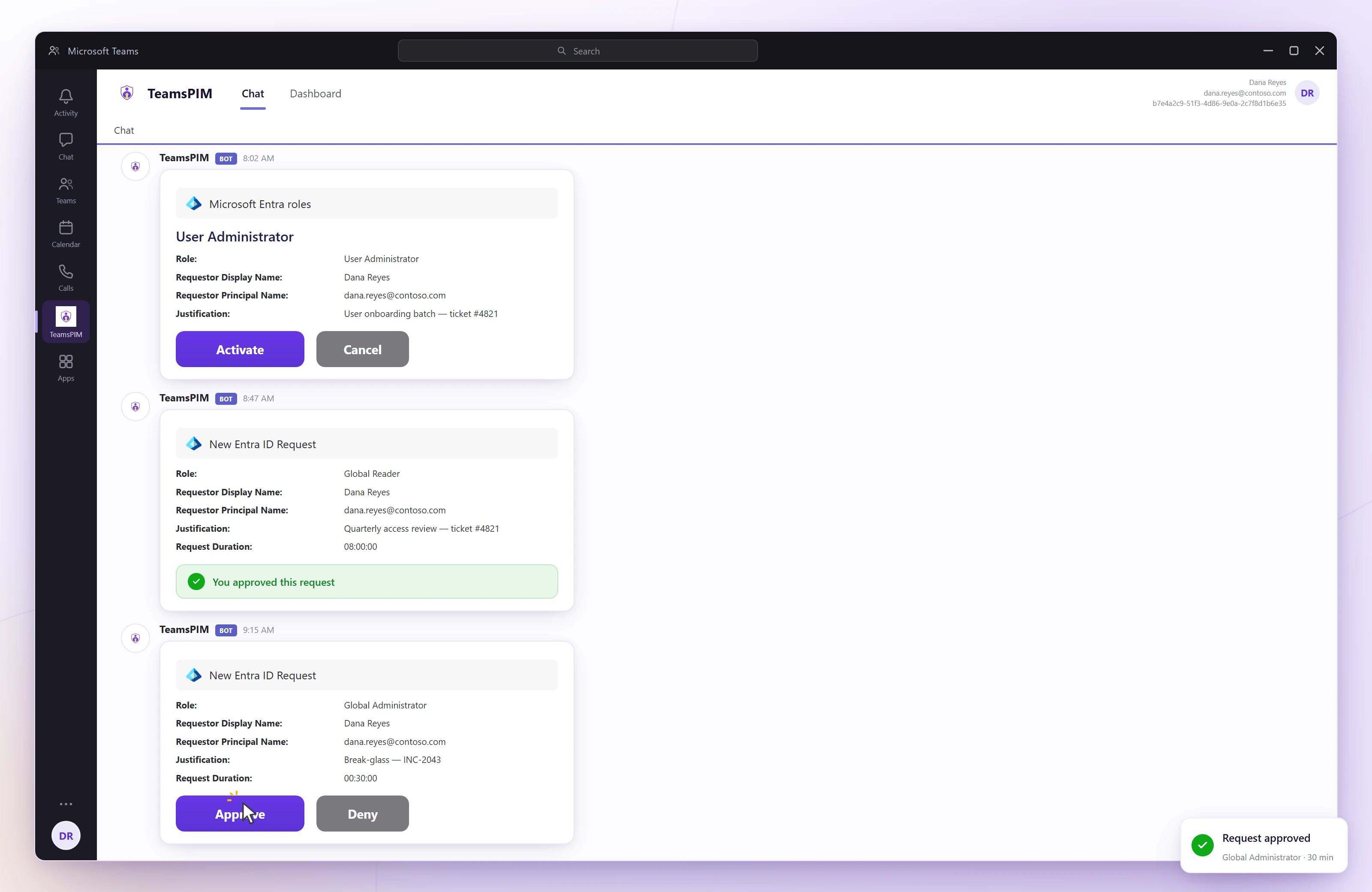
Instead of an email an approver may never see, the request arrives in Teams as an Adaptive Card — with the requester's justification in context — and is approved or denied inline. Cards are actionable in Teams on mobile, so on-call approvers aren't tied to a desktop portal.
- Adaptive Card approvals with full context
- Requesters alerted the moment a decision lands
- Approve or deny in a single tap
- Cross-approver status visibility
Visual Role Management
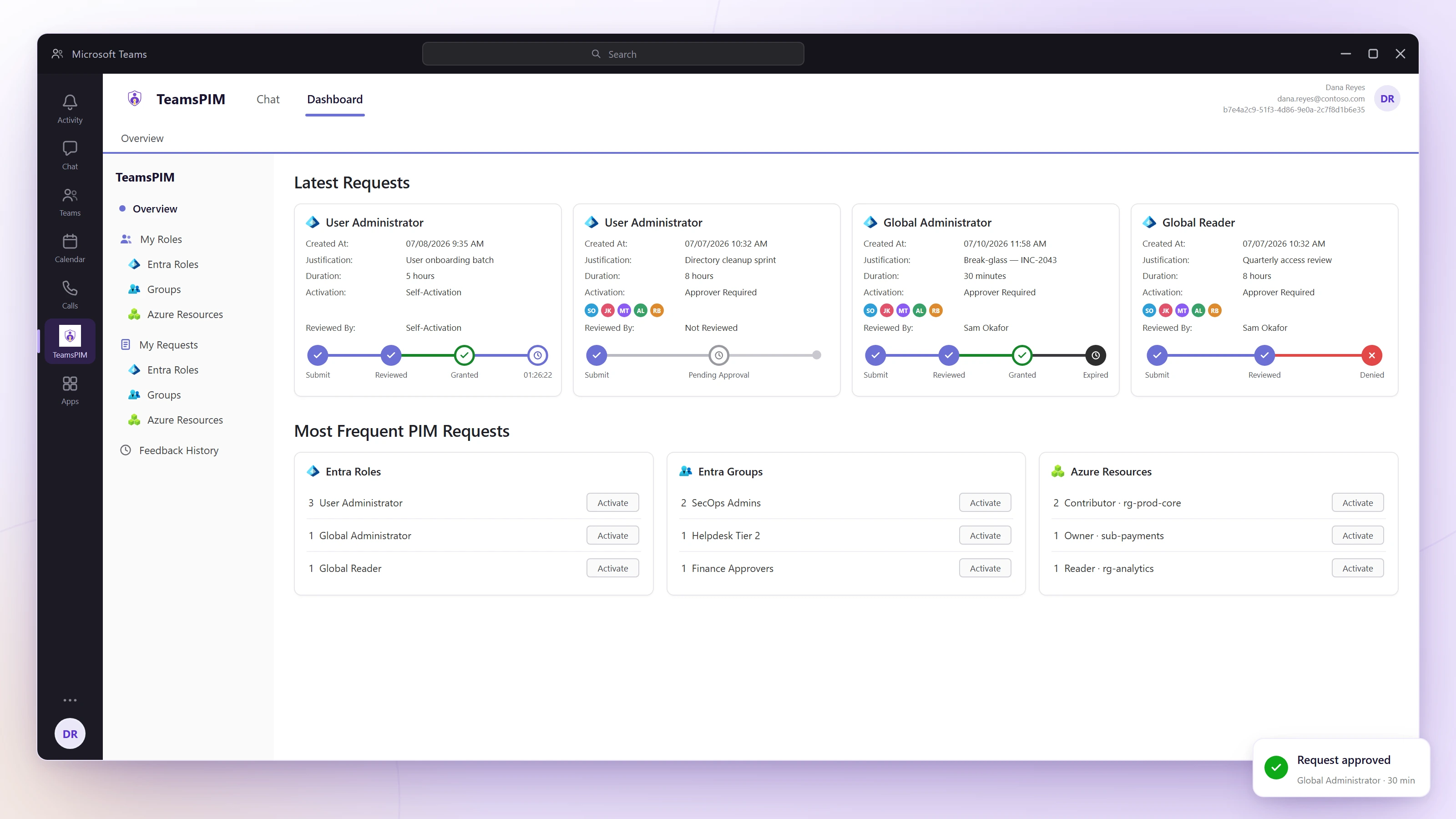
Where eligible users request and activate their roles — and see every assignment they hold across Entra ID, Groups, and Azure resources — in a rich, filterable Teams Tab app.
- View Entra ID, Groups, and Azure Resource roles
- Eligible vs. active role breakdown
- Timebound vs. permanent assignments
- Request and activate eligible roles — no portal round-trip
Every request, tracked end to end
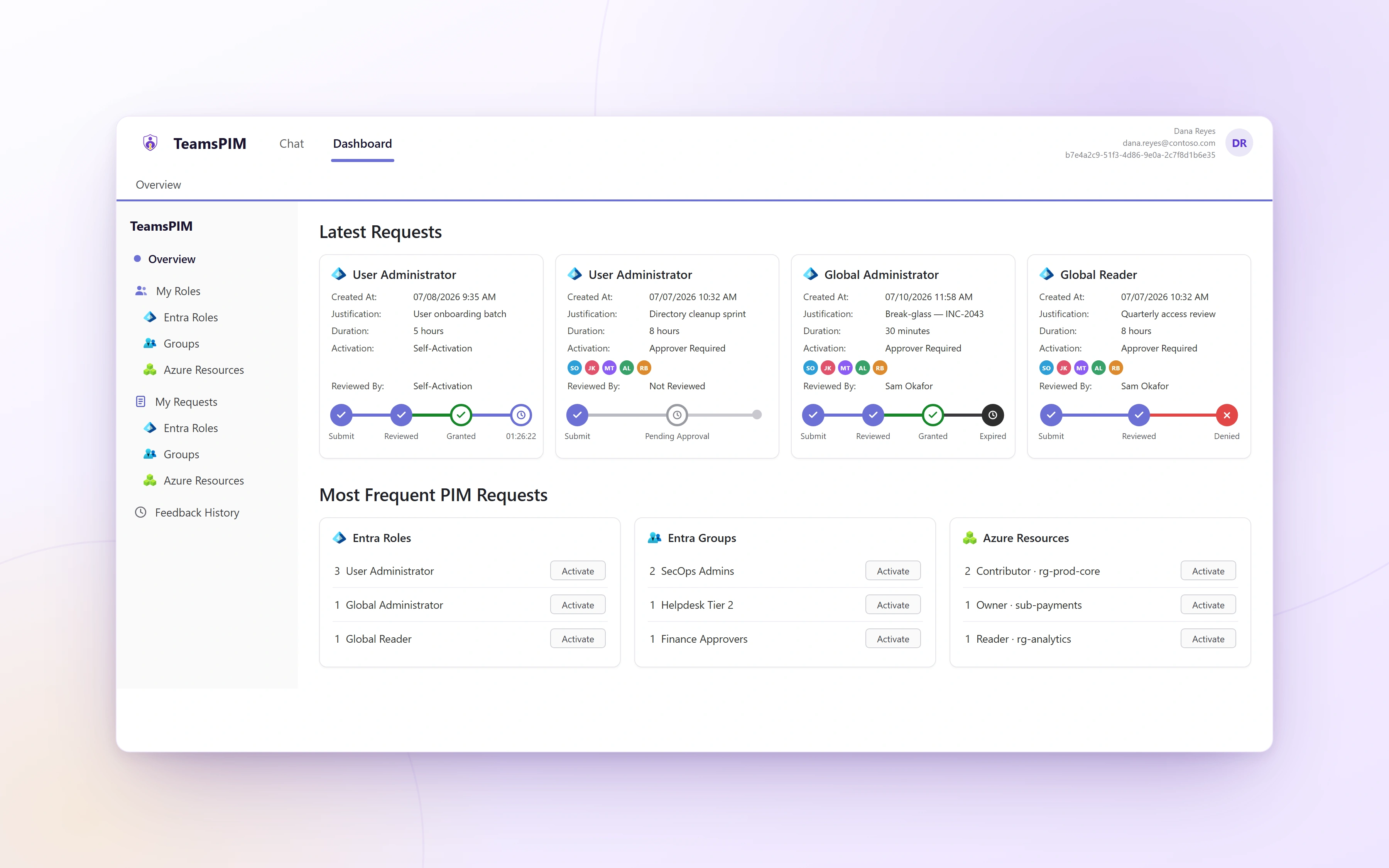
The Overview surface of the Teams tab: your latest requests with their full approval trail, and one-click activation for the roles your team uses most.
Bring Your PIM Workflow Together
From request to activation, every step happens in Microsoft Teams — full context for approvers, live status for requesters, and every action landing in your Entra PIM audit log.
Request a role
In the TeamsPIM dashboard: pick the role, duration, and reason — e.g. Global Admin, 4 hours, Ref #SC-50912.
Adaptive card to approver
Real-time Teams notification with full request context.
One-click approve
Approver acts inline, right from the Adaptive Card in Teams.
Role activates on approval
Requester and approvers see the decision in Teams; the action lands in your Entra PIM audit log automatically.
Feature Deep Dive
Approve or deny in a single tap
Act on PIM approvals the moment they arrive — right from your Teams notification, with the full request context in front of you.
One-click activation
Activate eligible PIM roles in a single click from the TeamsPIM dashboard — duration, reason, and ticket reference included.
Status alerts in Teams
Both sides stay current: the moment a request is approved or denied, requester and approver get a Teams alert — and the dashboard shows pending requests and expiring activations at a glance.
Justification, recorded in context
Every request carries a justification the approver sees before acting — not a single period buried in a log no one reads. Each action is written to your existing Entra PIM audit log.
Multi-scope dashboard
View eligible, active, pending, and expiring assignments across Entra ID directory roles, Microsoft 365 groups, and Azure resource scopes — all from one interface.
Multi-tenant ready
MSPs and multi-organization IT teams can manage PIM across multiple Microsoft Entra ID tenants from a single Teams instance. Get in touch for deployment planning and pricing.
Microsoft TeamsMicrosoft Entra PIMMicrosoft Entra IDBuilt for the Microsoft Ecosystem
TeamsPIM isn't a bolt-on. It's built from the ground up as a native Microsoft Teams application, using Microsoft Entra ID authentication and Microsoft Graph APIs.
Native Microsoft Teams appMicrosoft Entra ID authenticationTeams app installs in your M365 tenantTeamsPIM acts through Microsoft Graph against your existing Entra PIM configuration — no parallel privilege store, no new identity plane. See our security and data-handling practices →
On timing:TeamsPIM surfaces PIM activation and approvals in Teams. Role assignment propagation times are determined by Microsoft's platform — they are unchanged by where you initiate the activation. (Source: Microsoft Learn — Microsoft Entra PIM, June 2026.)
A one-month free trial in your own tenant
Run TeamsPIM free for one month against your real Entra PIM setup — install, onboard requesters and approvers, and watch the full request-to-activation flow work in your environment. Deployment support is included.
Deploy
Tenant review, Teams app installation, and Microsoft Entra ID admin consent — done together with our team.
Onboard
Requesters and approvers are onboarded into the bot and dashboard workflows in their existing Teams environment.
Measure
Track real activation requests, approvals, and adoption across the month — with our team on hand throughout.
Review
A success review with your stakeholders: measured results, technical Q&A, and a commercial proposal if you choose to continue.
Ready to See TeamsPIM in Action?
Start your one-month free trial and give the whole PIM workflow — requests, approvals, activations — one place: where your team already works.